Your phone lights up every time you touch it? Here is how to stop it
Three switches keep the screen dark until you press the side button. Two more steps cut how many notifications you get.
Phone in another language? The rows sit in exactly the same places, with translated names.
11 steps · 5 min
Part 1: the screen stays dark when you touch it
- 1
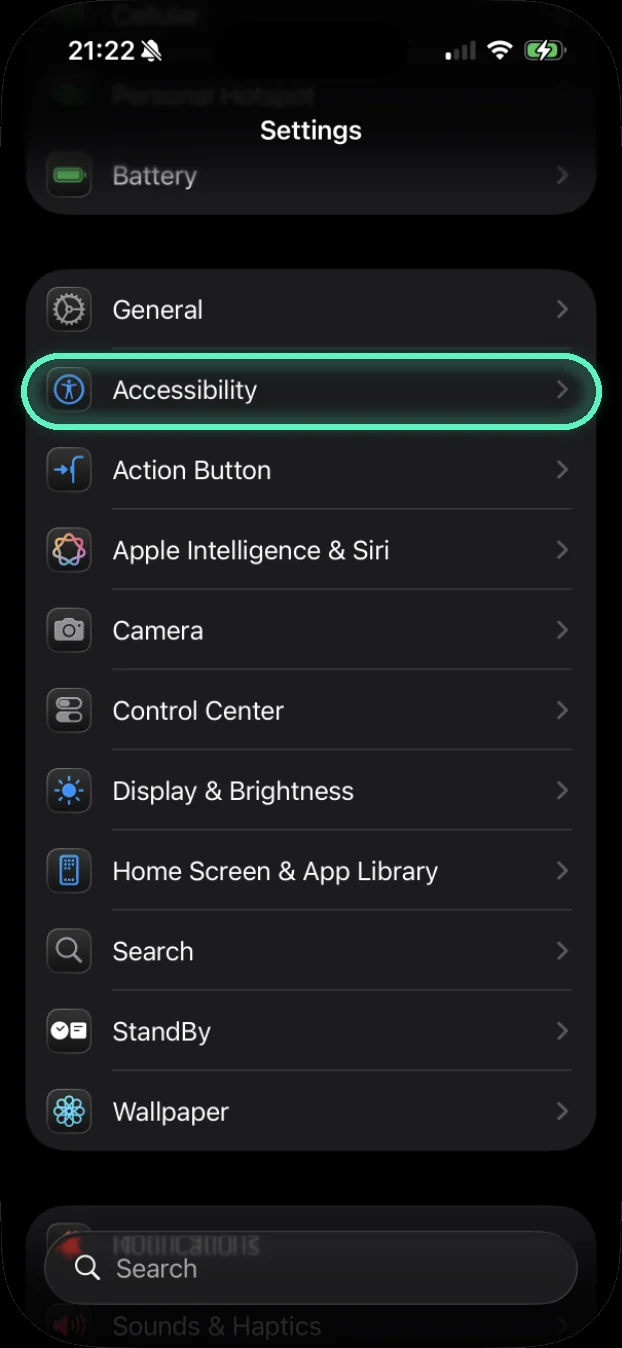
Open Settings and tap Accessibility
Settings is the grey gear icon. Can’t find it? Swipe down on the home screen and type Settings.
- 2
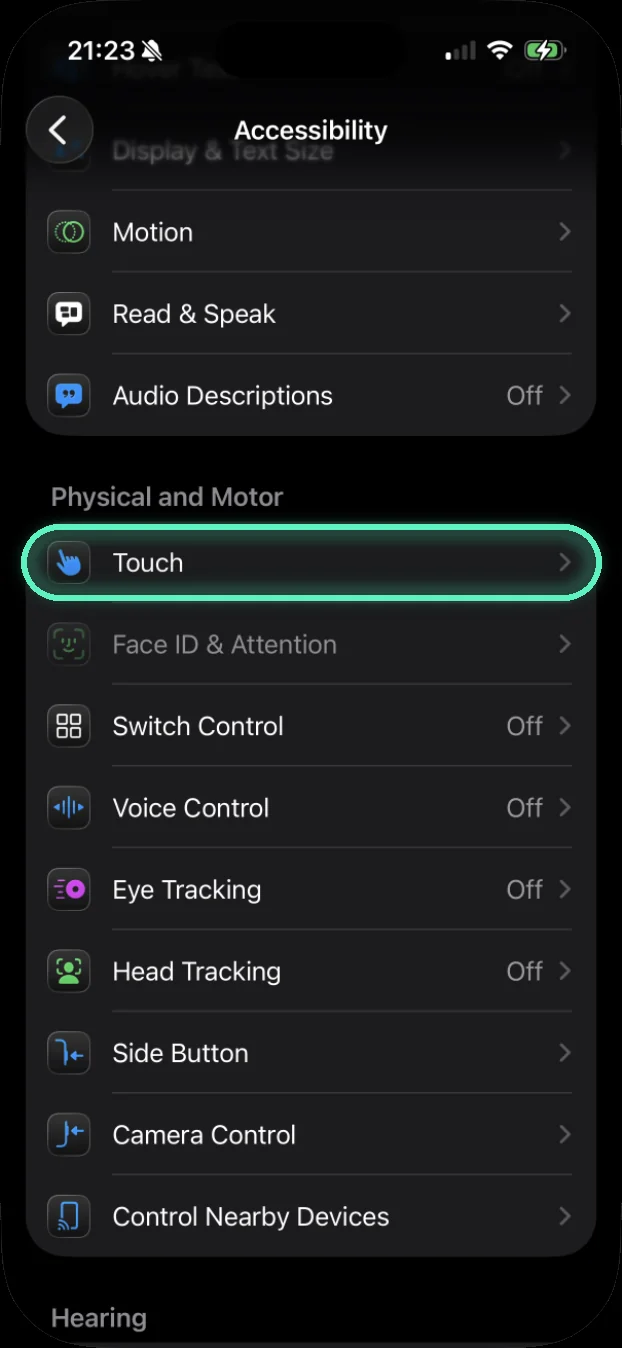
Scroll down and tap Touch
It sits under the heading Physical and Motor.
- 3
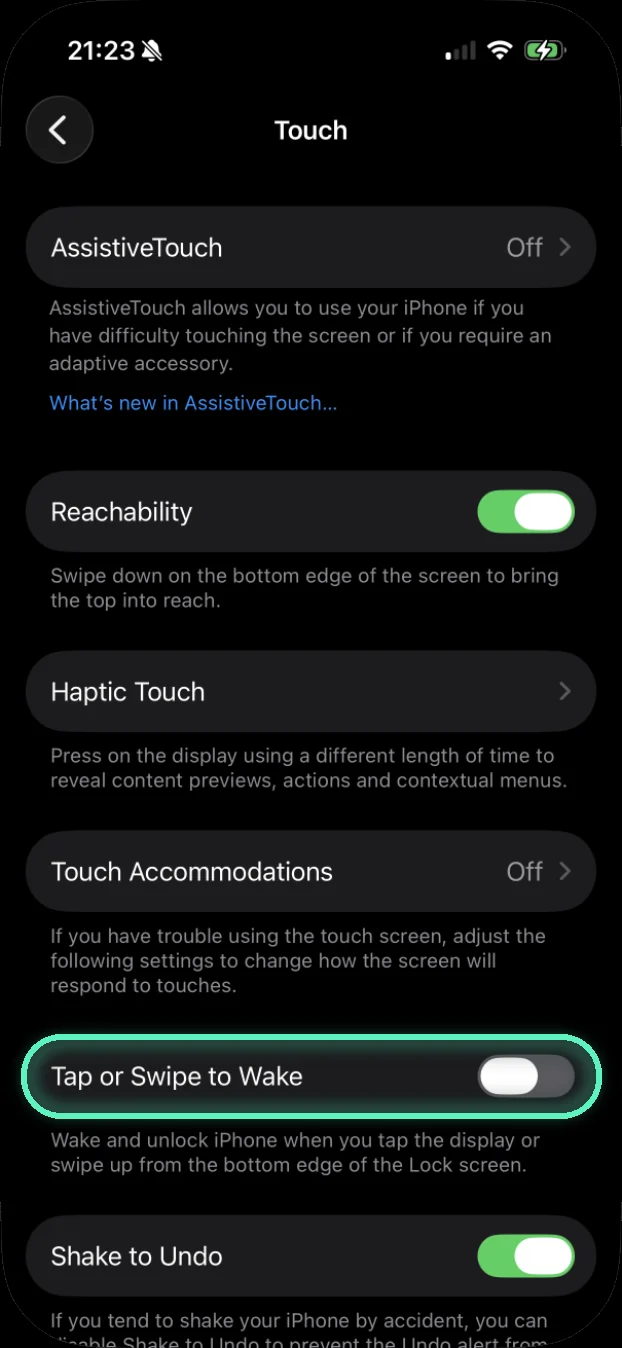
Switch off Tap or Swipe to Wake
Grey means off. From now on a tap on the screen does nothing. Wake the phone with the side button; Face ID works as before.
- 4
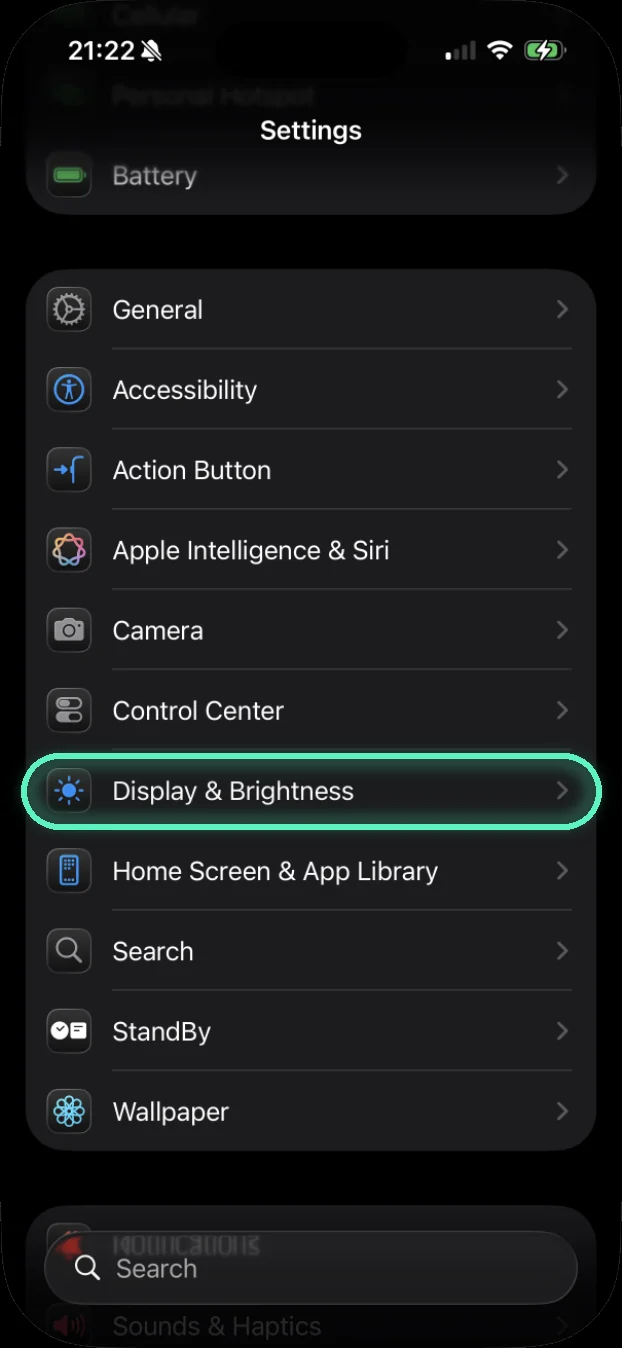
Go back to Settings and tap Display & Brightness
The back arrow at the top, twice, brings you to Settings.
- 5
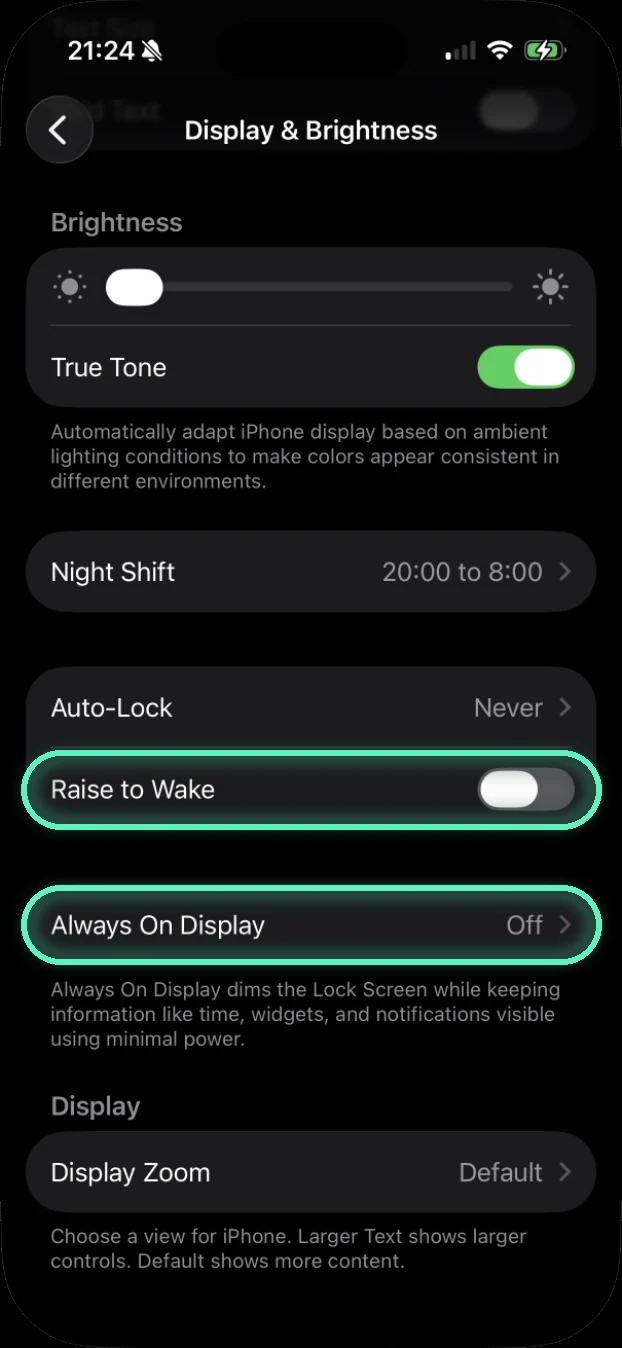
Switch off Raise to Wake
Otherwise the screen lights up every time you pick the phone up. Right below it: Always On Display.
- 6
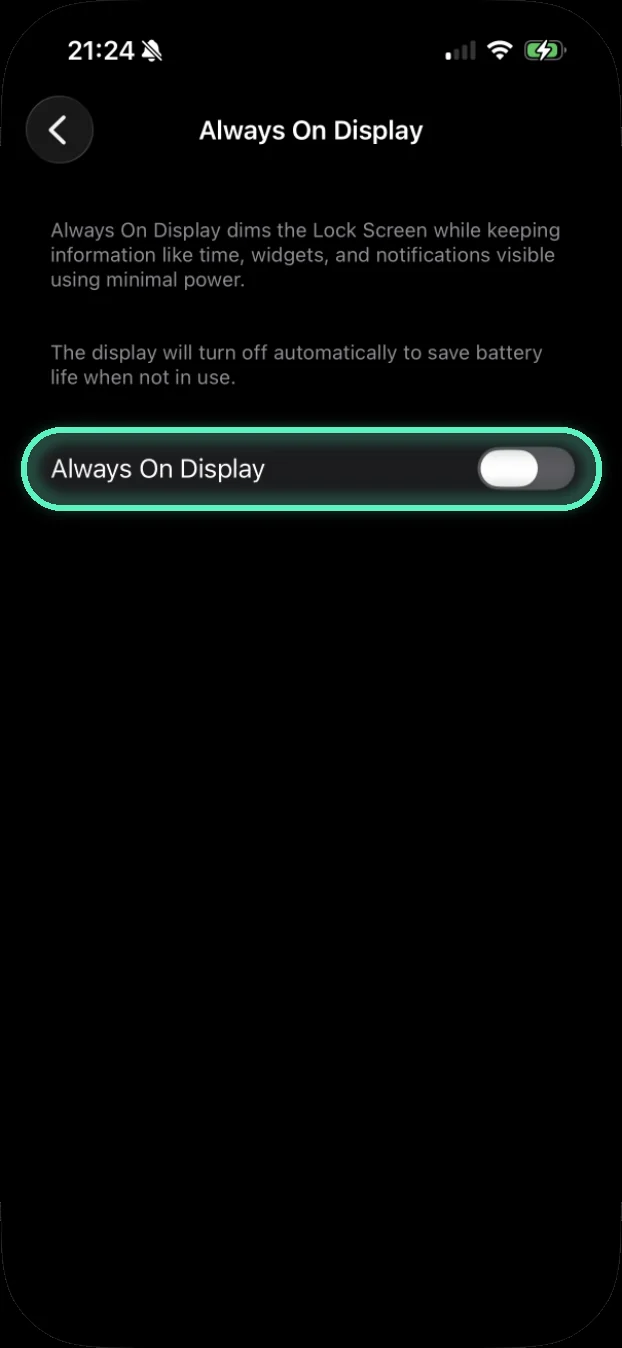
Open Always On Display and switch it off
On newer iPhones the locked screen stays dim with your notifications on it. No such row? Your phone doesn’t have it, skip this step.
Part 2: fewer notifications to begin with
- 7
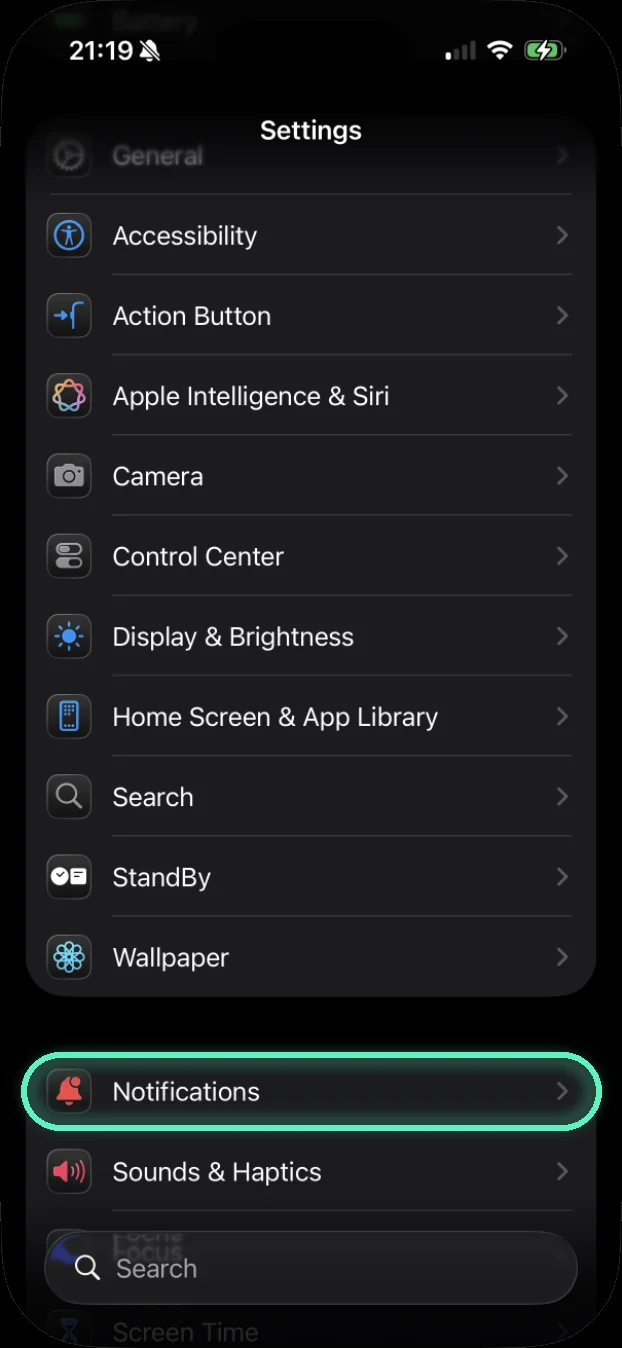
In Settings, tap Notifications
Right above Sounds & Haptics.
- 8
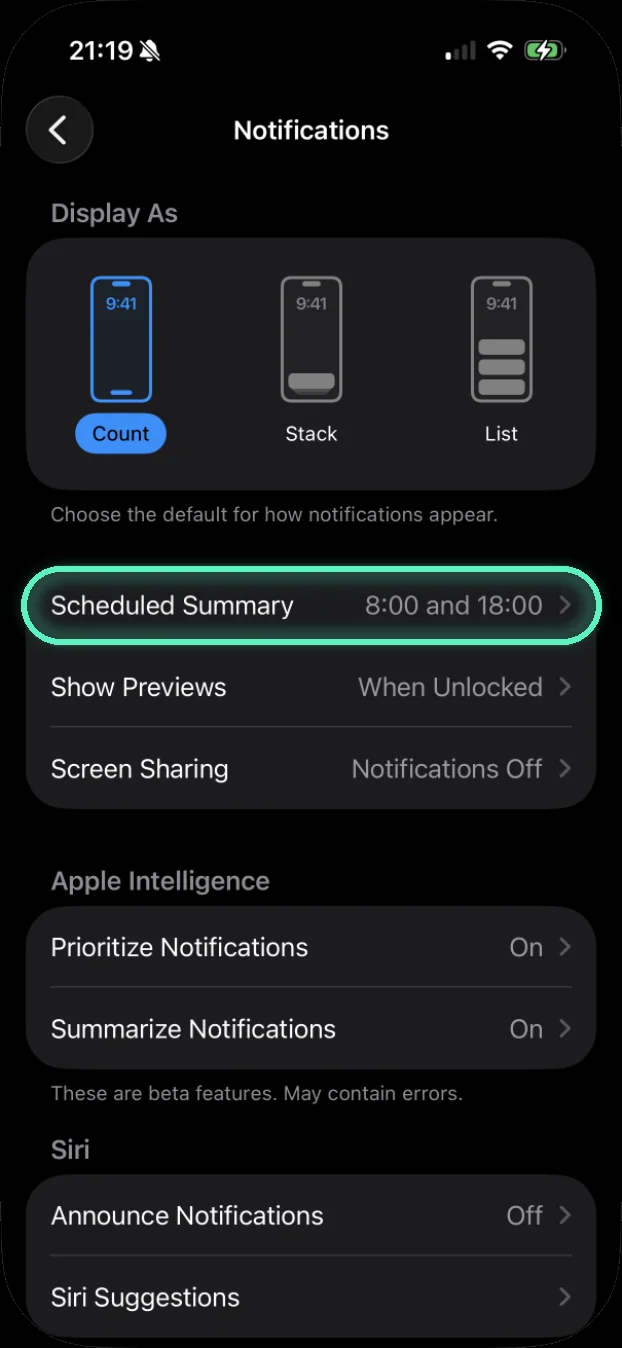
Tap Scheduled Summary and turn it on
Instead of buzzing all day, the apps you choose arrive together at times you pick. Here: 8:00 and 18:00.
- 9
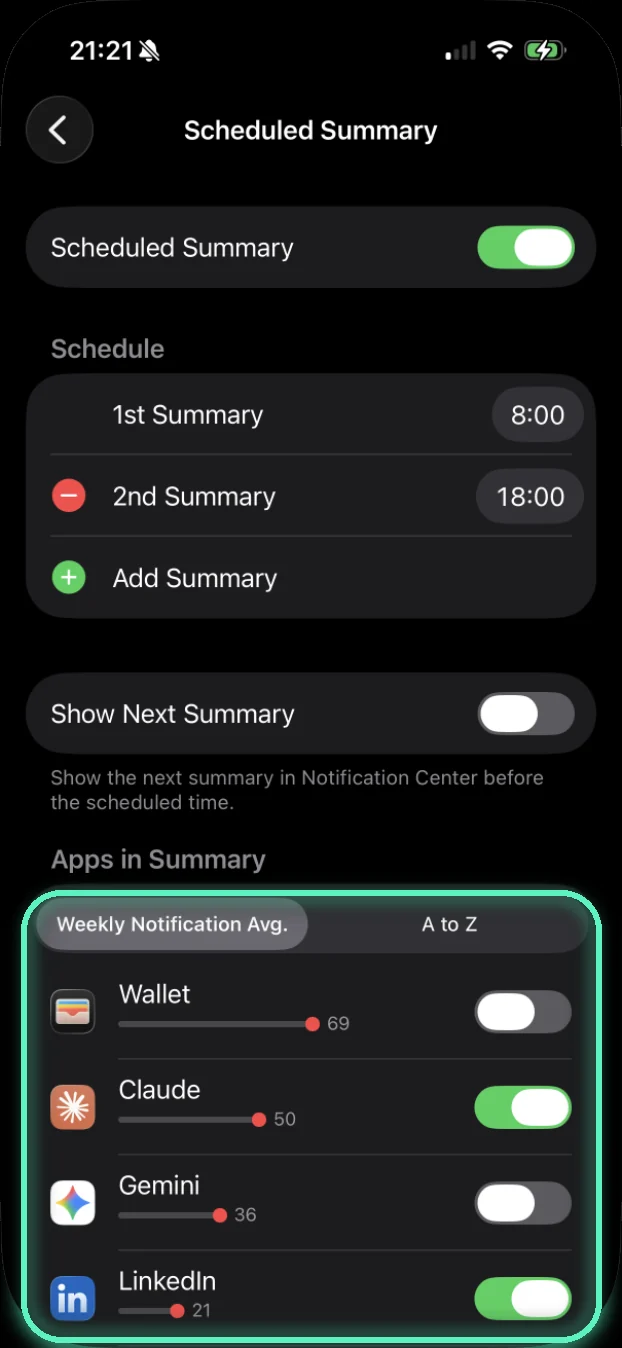
See which apps are the noisiest
The Weekly Notification Avg. list sorts apps by how many notifications each sends a week. On this phone Wallet alone sent 69. Switch on the noisy ones and they wait for the summary.
- 10
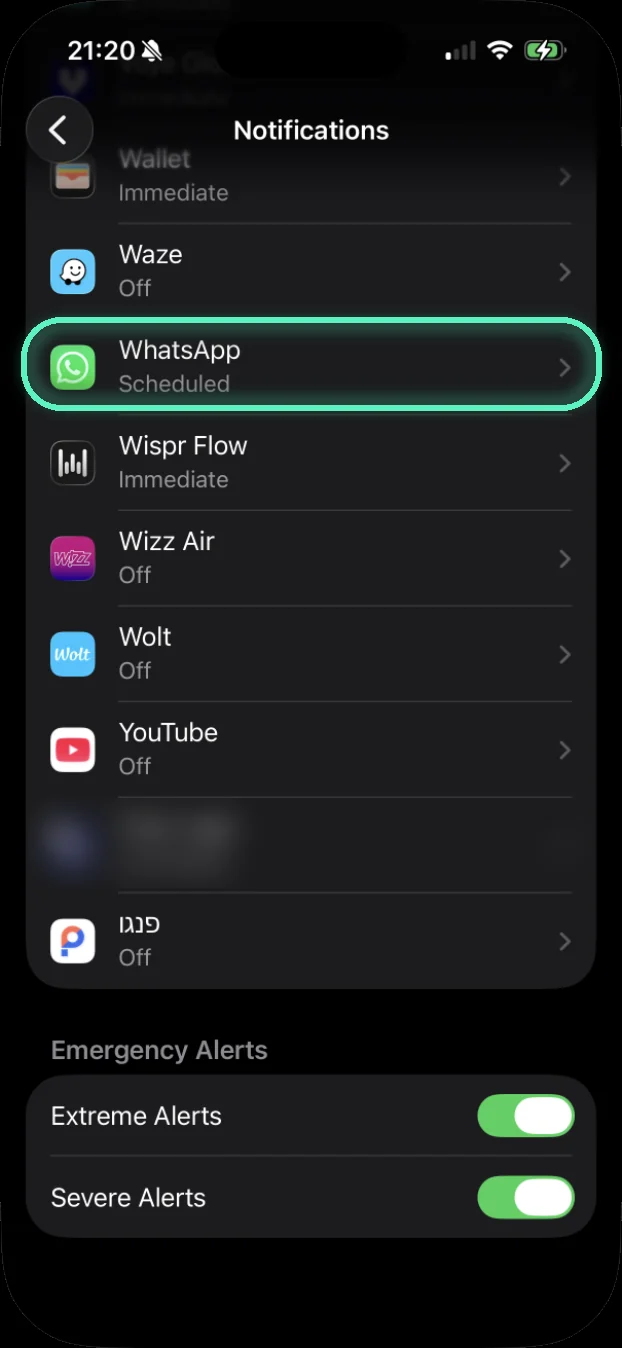
Back in Notifications, scroll to any app
Under each name it says Immediate, Scheduled or Off.
- 11
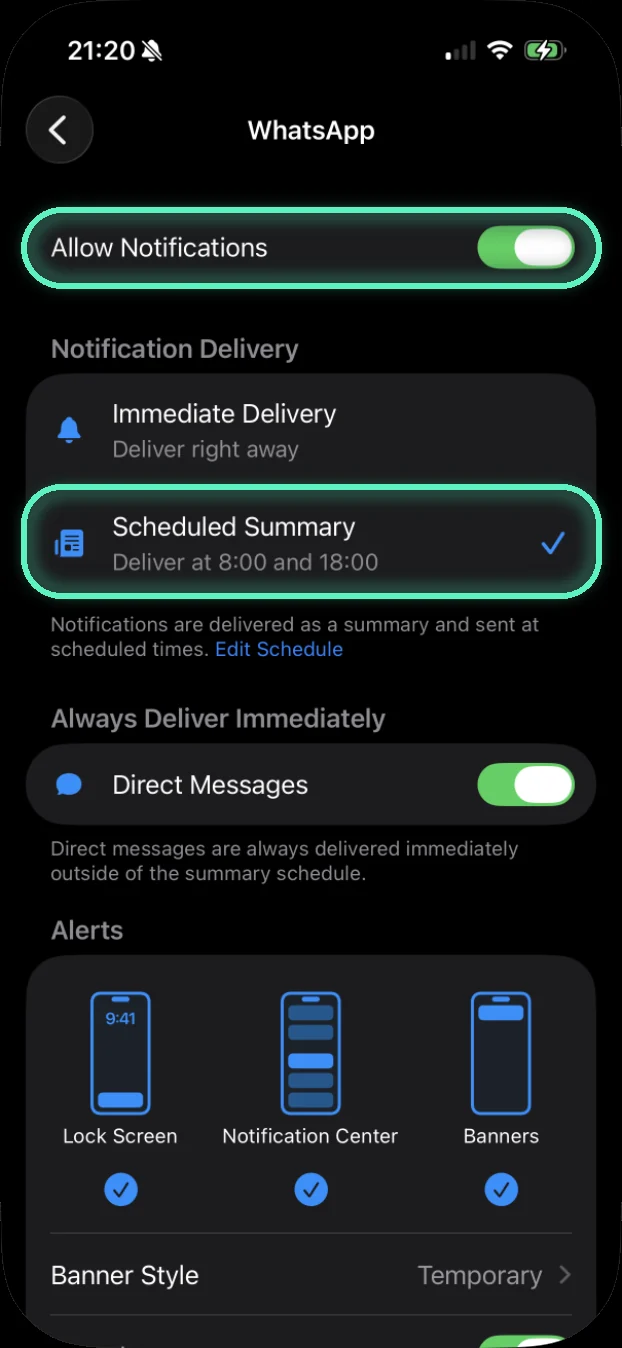
Inside the app: switch it off, or send it to the summary
Allow Notifications off means silence. Scheduled Summary means it waits. In WhatsApp, personal chats can still come through right away (Direct Messages).
Captured on an iPhone 16 Pro, iOS 26.6.1, on 17.10.2026. Names and places were checked on the screens themselves.
Send it to someone who needs it
The button opens WhatsApp with the message ready; you pick who.
mashav.ai/en/iphone/quiet-phone